Why Kepter asks to access your folders
The first time Kepter runs, your Mac shows a permission message for each folder you asked it to watch, usually Desktop, Documents, and Downloads. This is macOS doing its job. Any app that wants to see inside those folders has to ask you first, and Kepter’s whole job is seeing the files you save there.
What you’re granting
Permission for Kepter to read the files in that folder, on your Mac, so it can show them in your library and find them when you search.
What you’re NOT granting
Your files never leave your Mac. Kepter never moves, copies, or uploads them. It reads them where they are and remembers what it saw. Saying yes to these prompts doesn’t send anything anywhere.
Check or change it any time
- Open System Settings from the Apple menu.
- Go to Privacy & Security → Files & Folders.
- Find Kepter in the list and click it open. You’ll see one switch per folder:
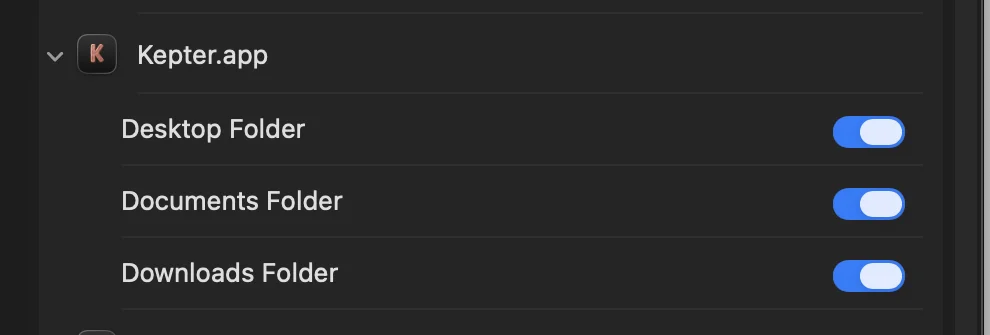
Your Mac’s System Settings. Every folder permission is a switch you control.
Turn a folder off and Kepter stops seeing it. Files already on your Mac stay exactly where they are, untouched. Turn it back on and they reappear in your library.